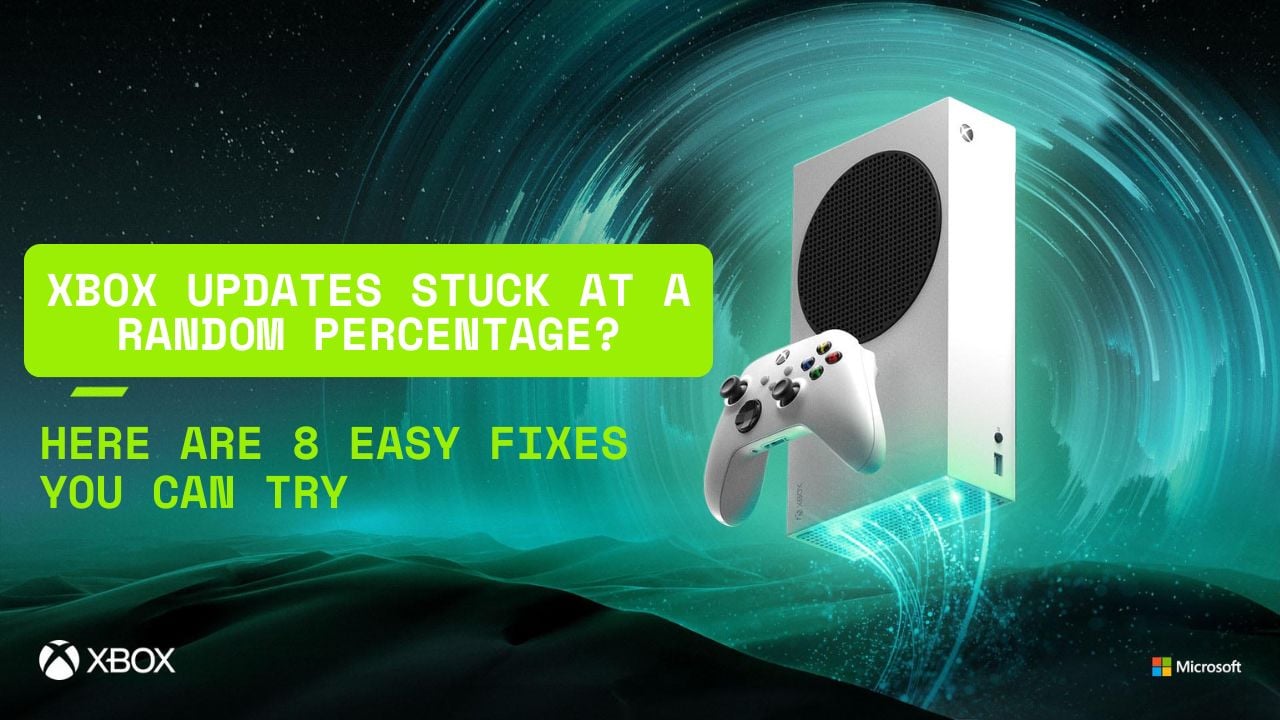
Over the years, multiple Xbox players have reported troubles with updates freezing at a random percentage – for some it is 63, or 66, or even 99!
Well, if you’re one of the people stuck on your Xbox consoles on the update screen, stop scratching your head and staring at the clock – try out these 8 easy fixes right now and get back to gaming!
1. Xbox Console Update Stuck Troubleshooting Guide
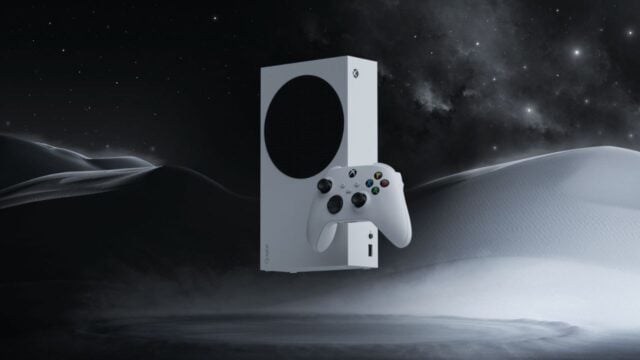
If your Xbox Series S or Xbox One update is stuck at a random percentage, try restarting your console or troubleshooting your network. You can also troubleshoot Xbox or perform an offline update.
Below we’ve listed a step-by-step guide to help you fix whatever update issue you may be facing. Try each solution in order until the problem is fixed.
i. Restart Your Console (Simple Power Cycle)
This is the easiest first step and often resolves the issue.
- Press and hold the Xbox power button on the front of the console for about 10 seconds, until it fully shuts down.
- Unplug the power cord from the back of the console.
- Wait 30 seconds.
- Plug the console back in and press the Xbox button to turn it on.
- Check if the update resumes or completes.
ii. Full Power Cycle (Deep Reset Without Losing Data)
This method is similar to the one above and can also help to kickstart stuck updates.
- Power down the console completely (hold the power button for 10 seconds).
- Unplug the power cord and wait for 5 minutes.
- Plug the console back in and power it on.
- If the update percentage drops but then continues, let it run—this is expected.
iii. Access the Xbox Troubleshooter (Reset Console Option)
Use the Xbox Startup Troubleshooter to reset the console while keeping your games and apps.
- Ensure the console is fully powered off.
- Hold the Bind button (left side of the console) and the Eject button (front of the console), then press the Power button.
- Continue holding Bind and Eject until you hear a second power-up chime.
- The Xbox Startup Troubleshooter will open.
- Select “Reset this Xbox”.
- Select “Reset and keep my games & apps.”
iv. Perform an Offline System Update (Using a USB Drive)
If the above options don’t work, try updating offline using a USB. You will need a PC with internet access and a USB flash drive (minimum 6 GB, formatted as NTFS) for this.
- On your PC, visit the official Xbox Offline System Update support page.
- Download the Offline System Update file (OSU1).
- Unzip the file and copy the $SystemUpdate folder to your USB drive.
- Plug the USB into your Xbox console.
- With the console off, press and hold the Bind + Eject buttons, then press the Power button.
- Keep holding Bind + Eject for 10–15 seconds until you hear two startup chimes.
- The console should detect the USB and start the offline update.
v. Network Troubleshooting (If Update Fails Due to Connectivity)
If your console displays a network-related error, try this:
- Open the Guide (press the Xbox button).
- Go to Profile & System > Settings > General > Network Settings.
- Select Test Network Connection.
- If it fails, follow the prompts to troubleshoot.
- Try restarting the console after fixing any connection issues.
vi. Clear MAC Address (Advanced Network Fix)
Sometimes, a corrupted MAC address causes update issues.
- Open the Guide and go to Settings > Network > Advanced Settings.
- Select Alternate MAC address > Clear.
- Restart the console and retry the update.
vii. Check for Update Error Codes
If you’re stuck on the “There’s a problem with the update” screen, try this:
- On your controller, press and hold both triggers + both bumpers simultaneously.
- A hidden screen will appear, showing the update error code at the bottom.
- Search for that error code on the Xbox Support Error Code page for specific solutions.
viii. Factory Reset (Last Resort)
Warning: This will erase all data. Use only if other steps fail.
- Open Settings > System > Console Info > Reset Console.
- Choose Reset and remove everything.
If none of these steps work, the issue may be hardware-related or tied to a deeper software problem. Visit Xbox Support or contact Microsoft for repair or replacement options.
With patience and a methodical approach, you should be back to gaming in no time.
![[FIXED] Xbox One Stuck on the Loading Screen Issue | Detailed Method](https://www.epicdope.com/wp-content/uploads/2020/09/xboxone-img-300x169.jpg)
![[FIXED] Xbox series X stuck on the loading=](https://www.epicdope.com/wp-content/uploads/2021/09/Halo-Infinite-Limited-Edition-Xbox-Series-X-1-300x169.jpg)
![[FIXED] Xbox series S stuck on the loading=](https://www.epicdope.com/wp-content/uploads/2023/02/Xbox-360-1-300x169.jpg)
![[FIXED] PS4 & PS4 Pro Stuck on the Loading Screen Issue | Easy Methods](https://www.epicdope.com/wp-content/uploads/2020/10/playstation-4-300x169.jpg)
![[FIXED] The Version Mismatch Error in Valorant | Detailed Guide to Fix the Error](https://www.epicdope.com/wp-content/uploads/2024/04/Valorant-6-640x360.jpg)

![[FIXED] PlayStation 5 Stuck on the Loading Screen Issue | Easy Methods](https://www.epicdope.com/wp-content/uploads/2021/03/Playstation-5-300x169.jpg)
No Comments on Xbox Updates Stuck at a Random Percentage? – Here are 8 Easy Fixes you can try!