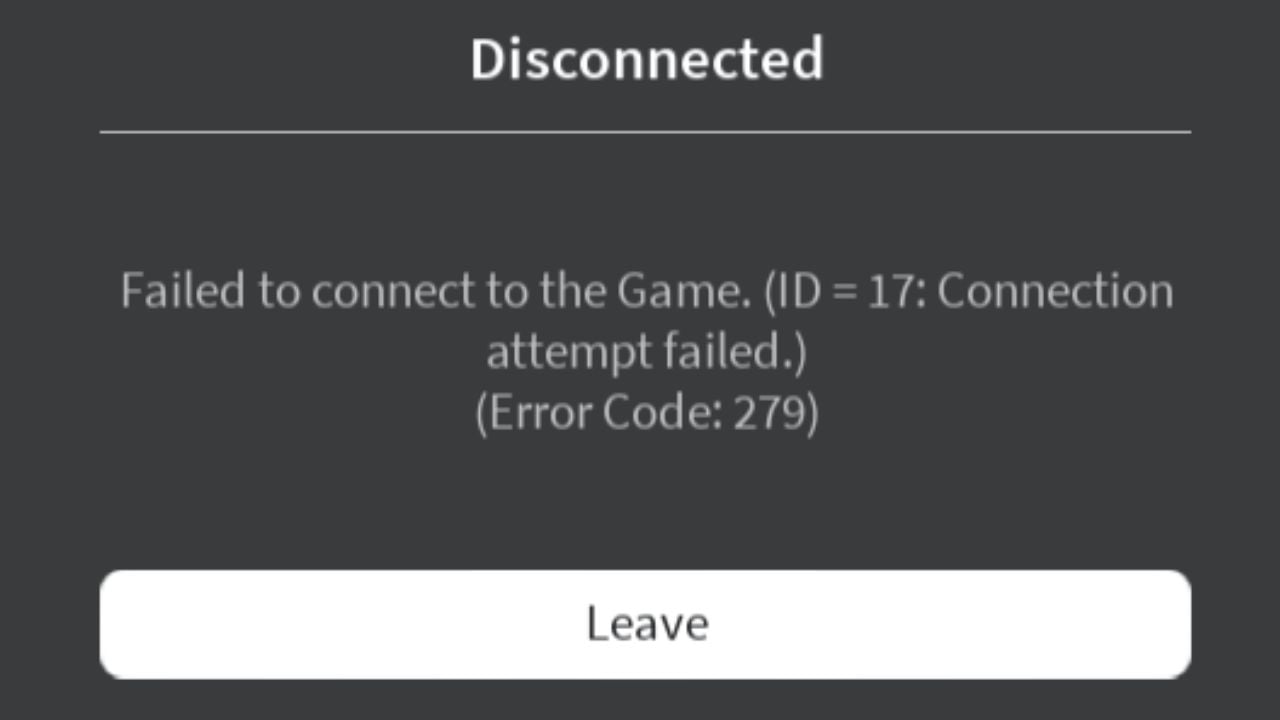
If you often play Roblox, you might have come across the error code 279. It is an annoying connectivity error. Now, as much as it disheartens us to say it but errors are a common sight in Roblox. Despite being one of the most popular games in the world, it is still plagued by tiny bumps every now and then.
While we don’t have a solution for every problem in Roblox, we do have something if you are also facing the error code 279. Let’s see how you can fix it!
Roblox Error Code 279
The error code 279 in Roblox is a connectivity error. It shows up when there is a connection problem between your game client and the servers.
The error code is accompanied by a message which reads “ID=17 Failure”.
This simply means that there is something wrong with your connection.
How to fix Error Code 279 in Roblox?

So, here are a few solutions for error code 279 in Roblox:
Check if Roblox is down
While unusual, it could be possible that the Roblox servers itself are down. There are several websites which keep a track of websites. You can refer to that or just do a simple Google search.
If that is the case, all you can do is wait for the servers to come back online. It doesn’t take more than a few hours though.
Update Roblox
Whatever device you are using, check whether you are using the latest version of Roblox. If not, it would be best to update it as soon as possible.
Developers often release bug fixes as part of frequent patch updates.
Check your connection
The problem could be right under your nose all this time!
Check your connection on your device. If you are using an ethernet, check whether your cables are working properly.
If you have a wireless connection, restart your router. Wait for a few minutes then turn it back on.
Do a speed test while you are at it.
Re-install Roblox
You can also face connectivity issues due to faulty game files.
Uninstall Roblox from your device. Delete any remaining files. Restart your device. Install Roblox once again.
That’s it!
These fixes are not in chronological order. You can do any one or all of them, whatever works best for you. It is highly likely that the problem is in your end since game servers are always well-maintained.
If the issue still persists, it would be best to switch to a different device.
Good luck!
About Roblox
Roblox is a popular online game platform which lets players create their own games and play games made by other users. It is developed by Roblox Corporation and is available on Microsoft Windows, Xbox One, Xbox Series X/S, Android, iOS, Fire OS, and Mac.

![[FIXED] The Version Mismatch Error in Valorant | Detailed Guide to Fix the Error](https://www.epicdope.com/wp-content/uploads/2024/04/Valorant-6-640x360.jpg)
No Comments on Error Code 279 in Roblox – Possible Reasons and How to Fix It?